Mechanical Keyboard Guide 2026 — Switches, Noise, Sizes
Switch types, noise levels, keyboard sizes, and price tiers. Everything to know before buying a mechanical keyboard.
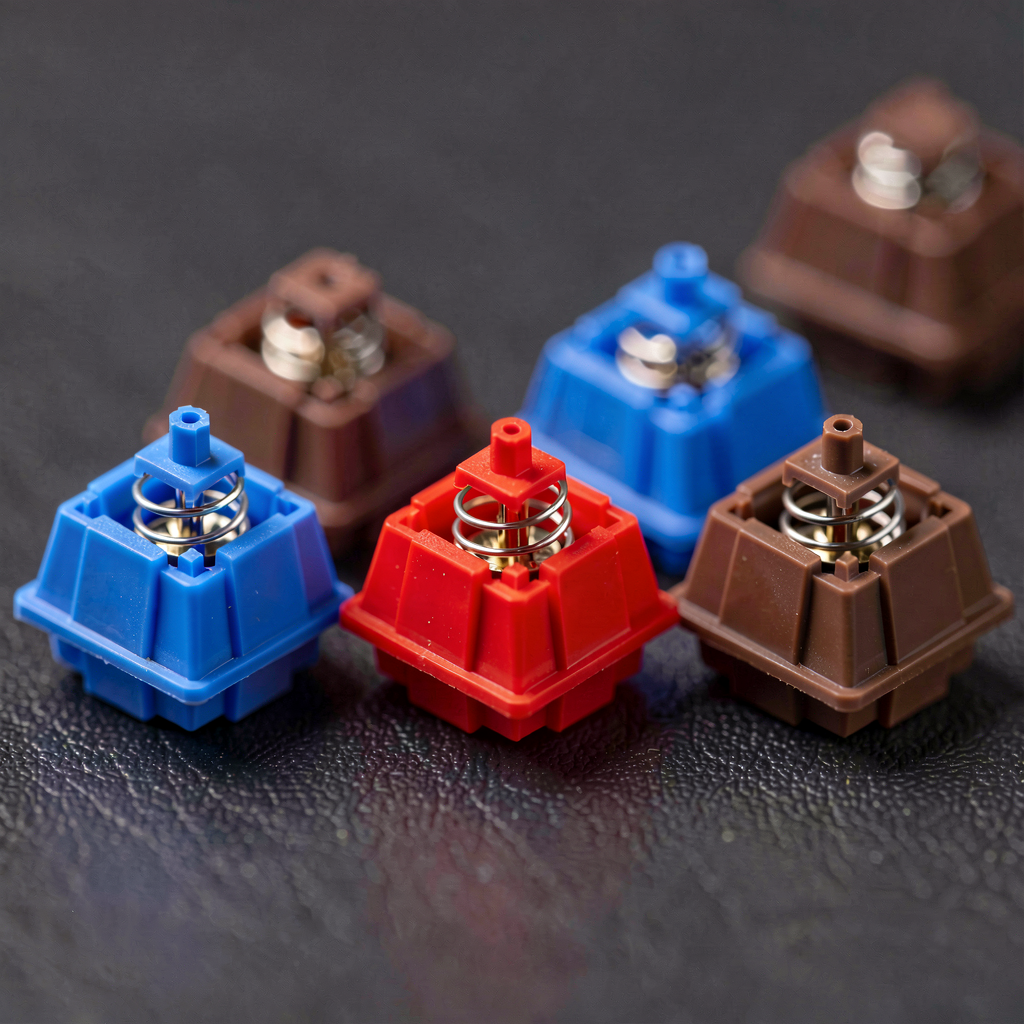
You can always tell when someone in the office has a mechanical keyboard. The sound gives it away — that distinct clack-clack or thock-thock. Some people find it annoying, others find it satisfying. But most people who switch to mechanical keyboards say the same thing: going back to a membrane keyboard feels wrong.
That said, picking the wrong one can be a real problem. Choose the wrong switch type and you'll either annoy your coworkers or hate the typing feel. Here's what actually matters.
What Makes Mechanical Keyboards Different
Standard keyboards (membrane) use a rubber dome that compresses to register a keypress. They're cheap and quiet, but you have to bottom out the key for it to register, and the typing feel is mushy.
Mechanical keyboards have an individual switch under each key. A spring-loaded mechanism with a contact point means the key registers partway through the press (at the actuation point), not at the bottom. Each key is independent, so simultaneous key presses (NKRO) work reliably, and if a switch breaks, you can replace just that one.
The tradeoff is price. Budget mechanicals start around $40-60, mid-range runs $80-120, and once you get into custom territory, $200+ is normal. Membrane keyboards cost $10-25. The gap is real.
The Switch Types
Switches are the core of the mechanical keyboard experience. There are three main families.
Blue Switches — The Clicky Ones
Every keypress produces a distinct "click" sound. You get clear auditory feedback, like typing on a typewriter. Fine if you work alone. In an open office, your neighbors will notice. And they probably won't appreciate it.
Actuation force around 50g, actuation point at 2.2mm. Great for typing, not ideal for gaming since rapid key presses feel sluggish.
Red Switches — Smooth and Linear
No click, no bump. The key goes straight down with a smooth, consistent feel. Quieter than blues by a wide margin. Popular with gamers because rapid key presses are easy and fluid.
Actuation force around 45g, actuation point at 2.0mm. The downside is that you don't get much feedback telling you when a keypress registered. Some people find the feel too bland.
Brown Switches — The Middle Ground
Smooth like reds, but with a subtle tactile bump partway through the press. No click sound, but your fingers can feel the actuation point. It's the compromise between blue's feedback and red's quietness.
Actuation force around 55g, actuation point at 2.0mm. If you have no idea what to get, browns are the safe bet. Hard to go wrong with them.
Other Switches
Cherry MX is the original, but options have expanded massively. Gateron, Kailh, and countless boutique switches from custom keyboard collaborations. Silent reds (dampened linear), speed switches (silver, shorter actuation), and silent browns are all variations worth knowing about.
| Switch | Feel | Noise | Best For |
|---|---|---|---|
| Blue | Clicky | Loud | Solo typing |
| Red | Linear, smooth | Medium | Gaming, quiet spaces |
| Brown | Tactile, slight bump | Medium | General use (beginner pick) |
| Silent Red | Linear + dampened | Low | Office use |
| Speed Silver | Short actuation | Medium | FPS gaming |
Keyboard Sizes
Size matters more than you'd think.
Full-size (100%) — Includes the number pad. If you do a lot of number entry or spreadsheet work, this is convenient. But it pushes your mouse further away, which is inefficient for gamers or anyone who uses a mouse heavily.
Tenkeyless (TKL, 80%) — Drops the number pad. Saves desk space while keeping function keys (F1-F12) and arrow keys. The most commonly recommended size for developers.
75% — A slightly more compact TKL. Function row and arrow keys are present but packed tighter. Good balance between space efficiency and functionality. Very popular right now.
65% — No function row. Arrow keys are still there, everything else goes through Fn key combos. Works if desk space is tight or you want a minimal setup. But if you constantly use F5 (refresh) or F12 (dev tools), the extra key combo gets old fast.
60% — No arrow keys either. Everything beyond the alphanumeric block requires Fn combos. There's an adjustment period, and opinions on this size are polarizing.
Using One at the Office
Noise is the main concern. Drop blue switches from your list immediately. Even reds and browns produce bottoming-out noise (the sound of the key hitting the plate), so to reduce that:
- Silent switches — Silent Red, Silent Brown, etc.
- O-rings — Small rubber rings under the keycaps that dampen the bottoming-out sound
- Desk mat — Absorbs vibration under the keyboard
Even with all that, it'll be louder than a membrane keyboard. If your neighbors are noise-sensitive, give them a heads-up or just go with silent switches from the start.
Price Tiers
$40-70 — Entry level. Keychron C series and Royal Kludge boards are well-regarded at this price point. Wired models.
$80-130 — Mid-range. Keychron K/V series, Leopold, Varmilo. Build quality jumps noticeably, and wireless options are common. This tier tends to offer the best satisfaction per dollar.
$170+ — Premium and custom territory. HHKB (topre/electrostatic capacitive), Realforce, or full custom builds where you pick the case, PCB, switches, and keycaps separately. More hobby than necessity at this point.
If you're buying your first mechanical keyboard, a wireless TKL or 75% in the $80-130 range is a solid starting point. Go with brown or silent red switches. You're unlikely to regret it. From there, you'll figure out what you actually prefer and can make a more targeted choice next time.
One more thing — mechanical keyboards last. Five to ten years of daily use is normal. Membrane keyboards tend to get mushy after a year or two. The upfront cost is higher, but the per-year cost often works out lower.