Getting Started with Docker: A Practical Guide
Docker explained from containers to Compose. Core concepts, essential commands, and common mistakes to avoid.
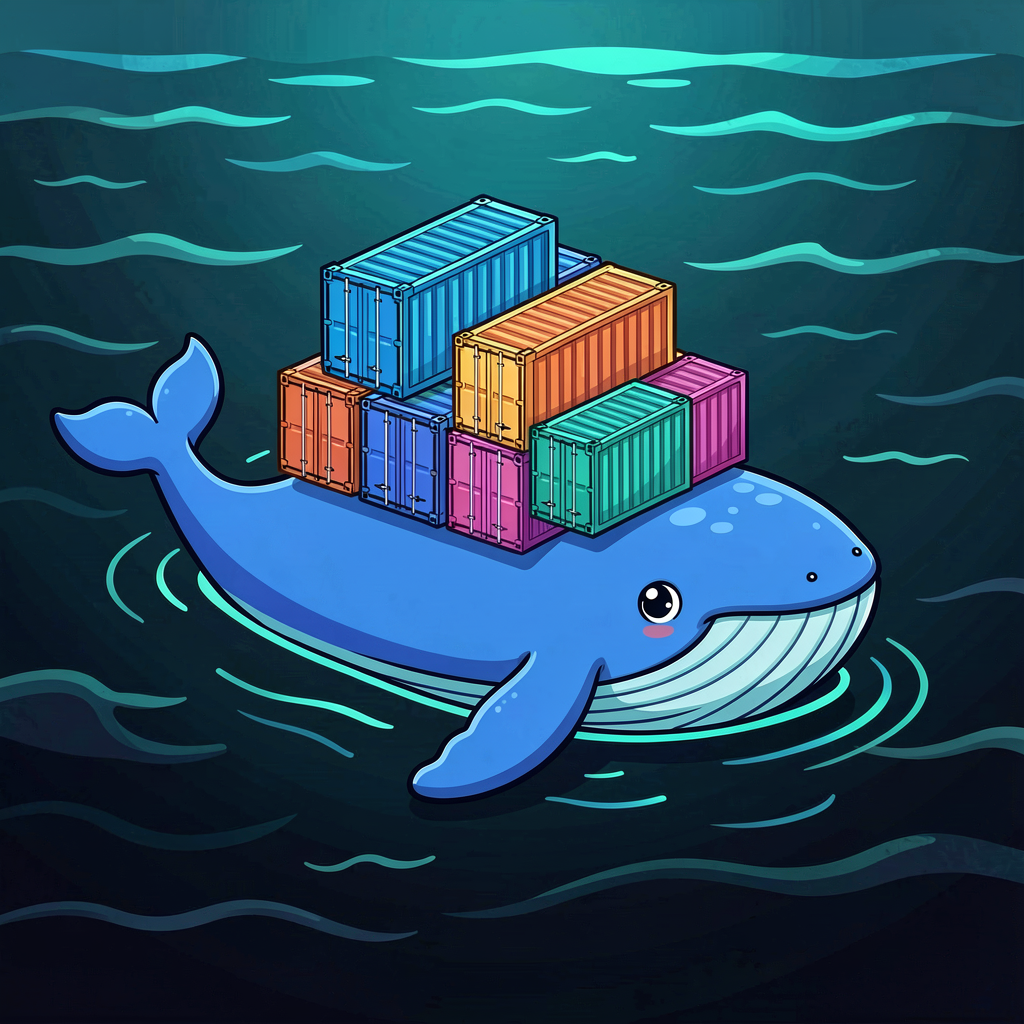
"It works on my machine" — every developer has either said this or heard it at least once. Your app runs perfectly locally, deploy it to a server, and it breaks. Different Node.js version. Python dependency conflict. Missing environment variable. Problems caused by environment differences.
Docker solves this. It packages the environment your app needs so it runs identically everywhere.
What Containers Are
Comparing to virtual machines (VMs) makes this click faster.
A VM virtualizes an entire operating system. You put a hypervisor on the host OS, install a guest OS on top, then run your app inside that. Heavy. A single Ubuntu VM eats several GB of disk and takes minutes to boot.
Containers share the host OS kernel. No guest OS needed, so they're lightweight. Image sizes are tens to hundreds of MB, and startup takes 1–2 seconds. The trade-off: since they share the kernel, Linux containers run on Linux. (On Mac and Windows, Docker runs a lightweight Linux VM under the hood to host the containers.)
The key concept is isolation. Each container gets its own filesystem, network, and process space. Container A running Node 20 and Container B running Node 18 don't interfere with each other.
Why Use Docker
First, environment consistency. Dev, test, and production environments are identical, so "works on my machine" stops being a problem.
Second, fast onboarding. When a new team member joins, instead of "install this, configure that, then..." it's just docker compose up and the development environment is ready.
Third, isolation and cleanup. Different projects can use different DB versions and runtime versions. Done with a project? Delete its containers and everything's clean.
Three Core Concepts
Images
The blueprint for a container. "To run this app, you need this OS, these packages, and this code in this location" — all stored as read-only layers.
Images are immutable. Once built, they don't change. Spin up 10 containers from the same image and each starts in an identical state.
Docker Hub has hundreds of thousands of public images. You typically grab an official base image like node, python, postgres, or redis, then layer your application code on top.
Containers
A running instance of an image. If an image is a class, a container is an object. Multiple containers can run from the same image, each operating independently.
Containers are ephemeral by default. Delete one and any changes made inside it disappear. To persist data, you need Volumes.
Dockerfile
A text file defining how to build an image. Think of it as a recipe.
# Dockerfile for a Node.js app
FROM node:20-alpine

WORKDIR /app

COPY package*.json ./
RUN npm ci

COPY . .
RUN npm run build

EXPOSE 3000
CMD ["npm", "start"]
Line by line:
FROM— base image.node:20-alpineis Node.js 20 on a minimal LinuxWORKDIR— sets the working directoryCOPY+RUN— copiespackage.jsonfirst and installs dependencies, then copies the rest of the code. This ordering lets Docker cache the dependency layer when only your code changesEXPOSE— declares which port the container uses (documentation purposes)CMD— the command that runs when the container starts
Essential Commands
These are enough to get started.
# Build an image
docker build -t my-app .

# Run a container
docker run -d -p 3000:3000 --name my-app my-app

# List running containers
docker ps

# View container logs
docker logs my-app

# Execute a command inside a container
docker exec -it my-app sh

# Stop & remove a container
docker stop my-app
docker rm my-app

# List images
docker images

# Clean up unused images/containers
docker system prune
-d runs in the background. -p 3000:3000 maps host port 3000 to container port 3000. --name assigns a name. -it opens an interactive terminal.
Docker Compose — Multiple Containers at Once
Real projects rarely run a single container. Web server + database + cache is a common combo. Starting each one manually with docker run gets tedious, so Docker Compose exists.
# docker-compose.yml
services:
  app:
    build: .
    ports:
      - "3000:3000"
    environment:
      - DATABASE_URL=postgres://user:pass@db:5432/mydb
    depends_on:
      - db
      - redis

  db:
    image: postgres:16
    environment:
      - POSTGRES_USER=user
      - POSTGRES_PASSWORD=pass
      - POSTGRES_DB=mydb
    volumes:
      - db-data:/var/lib/postgresql/data

  redis:
    image: redis:7-alpine

volumes:
  db-data:
One file. Run docker compose up and the app, PostgreSQL, and Redis all start together. docker compose down tears everything down. Your entire dev environment setup lives in this single file.
The db-data volume keeps database data intact even when the container is deleted. Without it, running docker compose down would wipe the database every time.
Common Mistakes
Oversized images — Using FROM node:20 produces an image close to 1GB. Switch to node:20-alpine and it drops below 150MB. The -alpine tag uses a minimal Linux base and is better suited for production images.
Skipping .dockerignore — When you COPY . ., everything goes in: node_modules, .git, .env. A .dockerignore file excludes what shouldn't be copied. Same syntax as .gitignore.
node_modules
.git
.env
*.md
Not leveraging layer caching — Put things that change frequently later in your Dockerfile. If package.json hasn't changed, there's no reason to re-run npm ci. That's why dependency installation should come before copying the rest of the source code.
Where to Start
Install Docker Desktop, then write a Dockerfile for a project you're currently working on. Start with an official base image, write a simple Dockerfile, and verify it works with docker build → docker run. That alone covers the core concepts.
Next step: add a database with Docker Compose and containerize your entire development environment. After those two stages, the "why" behind Docker clicks on a practical level.